

Customer Messages
Notice:
Available since version 5.16.0
The Customer Messages feature allows you to send individual email messages to customers directly from the TYPO3 backend. Within a basket order, you can compose and send an email to the customer with a pre-defined or custom subject and message body.
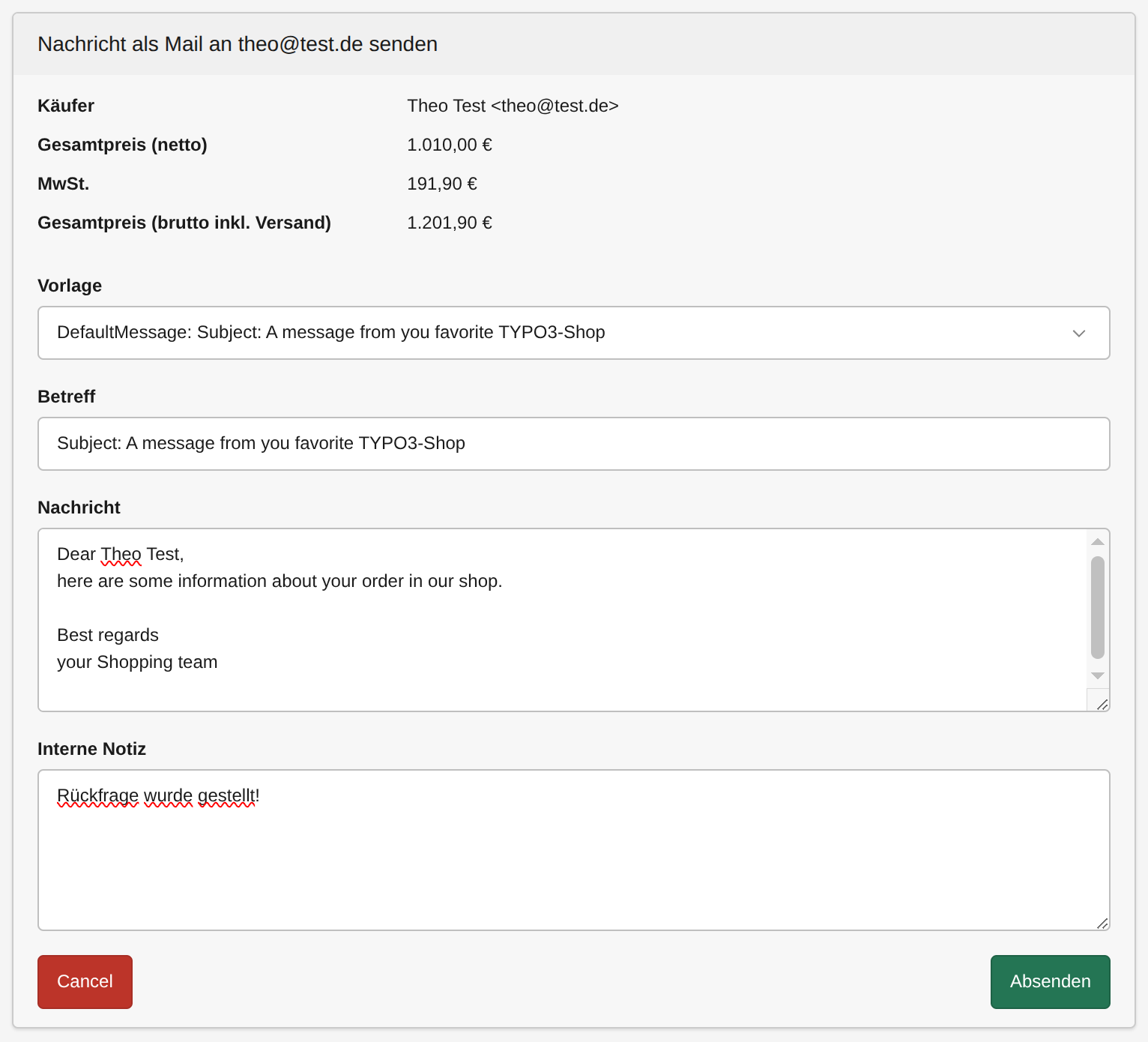
How it works
In the backend module for basket orders, each order provides a Send Message action. When you click on it, a form opens where you can:
- Select a message template from a dropdown – the subject and message fields are automatically pre-filled with the template content.
- Edit the subject and message before sending.
- If you're basket-order is already at least in state "ordered" you have the possibility to attach the invoice to the mail as well. This is useful for payment reminders.
- Send the email to the customer's email address associated with the order.
The message is rendered using Fluid, so you can use the {basketOrder} object to dynamically insert order-related information into your templates.
Message Templates
Message templates are simple HTML files located in the Email/ShopCustomer/Message/ subfolder of the configured templateRootPaths. The system automatically collects all files ending with Message.html and provides them as selectable templates in the backend.
Template file structure
- Line 1: The email subject line
- Line 2 to end: The email message body
Example template file (DefaultMessage.html)
Subject: A message from you favorite TYPO3-Shop
Dear {basketOrder.name},
here are some information about your order in our shop.

Our internal order number: ###UID###
Your order/invoice number: ###INVOICE_NUMBER###
Your postal-code: ###POSTAL_CODE###
Your tracking-number: ###TRACKING_NUMBER###

Best regards
your Shopping team
Available placeholders
The following placeholders are replaced with actual order data:
| Placeholder | Description |
|---|---|
{basketOrder} |
The full basket order Fluid object (e.g. {basketOrder.name}, {basketOrder.email}) |
{basketOrder.uid} |
The internal basket order number (UID) |
{basketOrder.invoiceNumber} |
The invoice number as a pure integer (for example 34) |
{basketOrder.invoiceNumberString} |
The invoice number as a formatted string (for example WS-2026-04-34) |
###POSTAL_CODE### |
The customer's postal code |
###TRACKING_NUMBER### |
The tracking number |
Overriding and adding custom templates
You can override existing templates or add custom ones by using the standard TYPO3 templateRootPaths mechanism. The paths are configured via TypoScript:
plugin.tx_shop {
    view {
        templateRootPaths {
            200 = EXT:shop/Resources/Private/Templates/
            400 = {$themes.resourcesPrivatePath}Extensions/Shop/Templates/
        }
    }
}
Templates in paths with a higher numeric index override templates with the same filename in paths with a lower index. This means you can place your custom templates in your site package and they will take precedence.
Adding a custom template
-
Create a new file ending with
Message.htmlin theEmail/ShopCustomer/Message/subfolder of one of your configuredtemplateRootPaths, for example:your_sitepackage/Resources/Private/Extensions/Shop/Templates/Email/ShopCustomer/Message/ShippingNoticeMessage.html -
The first line is the subject, the rest is the message body:
Your order has been shipped!
Dear {basketOrder.name},
your order ###INVOICE_NUMBER### has been shipped.

Your tracking number: ###TRACKING_NUMBER###

Best regards
your Shopping team- The new template
ShippingNoticeMessagewill automatically appear in the template dropdown in the backend.
File/folder structure
📂 Email
└─ 📂 ShopCustomer
   └─ 📂 Message
      ├─ 📄 DefaultMessage.html
      ├─ 📄 CustomMessage.html
      └─ 📄 ShippingNoticeMessage.html
Note: Only files ending with
Message.htmlare recognized as message templates. Other files in the folder are ignored.